It’s a new year, and we’re launching some new features in Church360° Members. The following blog outlines time-saving tools, like Calendar Forms, a new search feature, and Quick Actions.
Calendar Forms
The introduction of Event Forms last summer was monumental for Church360° Members. And now, we’ve expanded this feature to apply to even more situations with Calendar Forms.
What are Calendar Forms?
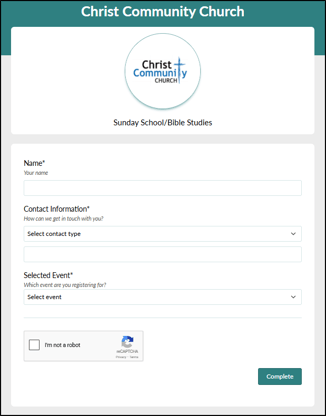 Calendar Forms allow you to create a single form tied to a specific calendar, such as your Worship calendar, Education calendar, or Fellowship calendar. When submitting Calendar Forms, respondents can select any instance of an event under that calendar within the next month.
When to Use Calendar Forms
- Tracking attendance for recurring events, removing the need for multiple forms
- Streamlining sign-ups, volunteer requests, permission slips, and ongoing registrations
For more tips on adding Calendar Forms, editing them, reviewing their data, and linking names and recording attendance, check out the articles in the Help Center.
Search and Quick Actions
 New Search Function
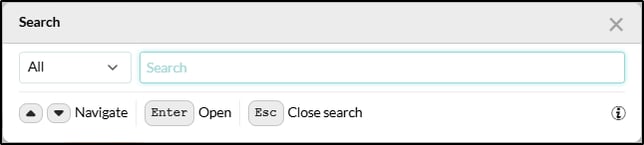
Next, we’ve introduced a new search function in Church360° Members. This feature was created to save you time and enable you to jump between household records more easily.
To use, simply do the following:
- Open the search bar.
- Choose what to search (People, Households, or All).
- Enter your search term.
- Review your search results.
Quick Actions
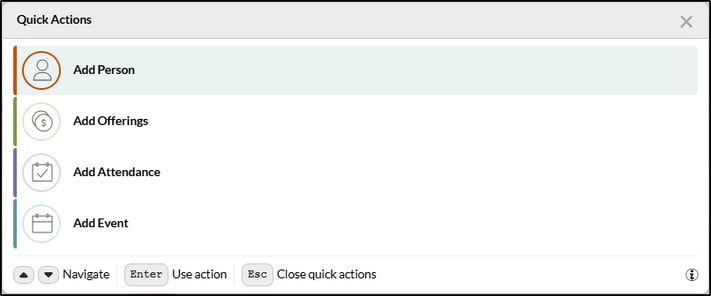
Similar in nature to the new search function, we’ve implemented Quick Actions to promote a more efficient user experience. Quick Actions allows you to jump to common tasks from anywhere on your site without navigating through menus. This is ideal for the church office, where new tasks can come up spontaneously.
How It Works
On your Church360° site, press Ctrl + Shift + S to view an assortment of options, including the following:
- Add person
- Add offerings
- Add attendance
- Add event
Having these functions on “speed dial” is ideal for the ministry setting, as they cover the most common membership-oriented tasks your team sees. We hope you enjoy learning more about using Quick Actions in your software.
Visit the Church360° Members Help Center for more detailed information on these features.